SolidWorks to ROS 2 URDF: A Complete Conversion Guide

Step-by-Step Walkthrough to Bring Your CAD Models into ROS Simulation

Thu Nov 13, 2025

Say Yes to New Adventures

When building robots in ROS 2, one of the most common hurdles is turning your SolidWorks designs into URDF files that your robot can actually use for simulation, visualization, and control.

This guide, adapted from Krynsler Rebello’s comprehensive workflow, walks you through every step of converting SolidWorks assemblies to URDF (Unified Robot Description Format): from installation, coordinate setup, and export, to debugging and validation inside ROS tools like RViz and Gazebo.

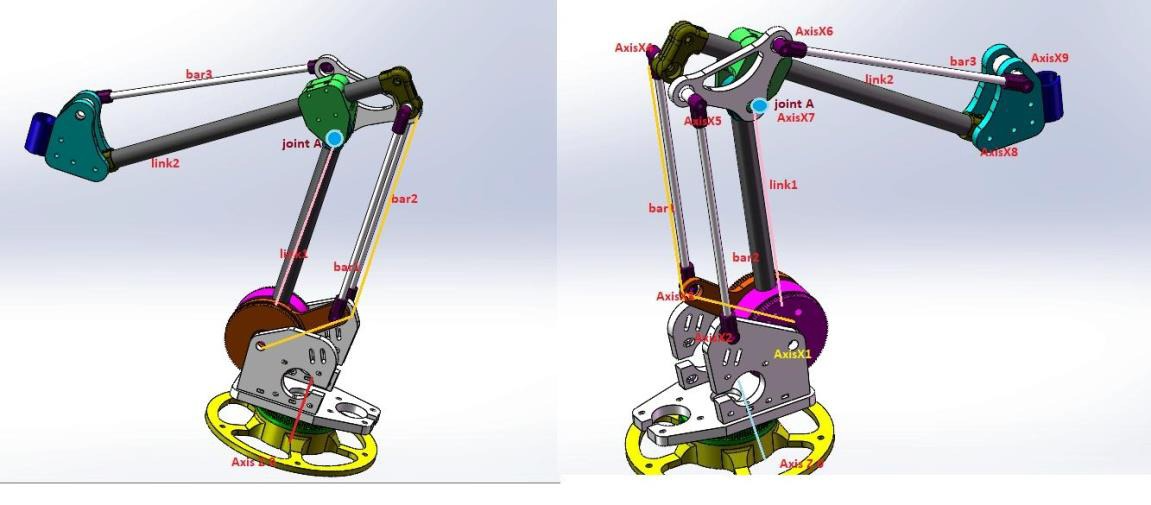
URDF acts as your robot’s digital twin inside ROS, describing every link, joint, and mesh file that makes up your robot. Done right, it bridges the gap between mechanical design and robotic intelligence.

Key Steps Overview

Understanding URDF and Why It Matters

URDF represents your robot as a tree of links and joints, defining physical parts, motion constraints, and inertial properties.
You’ll use it for:
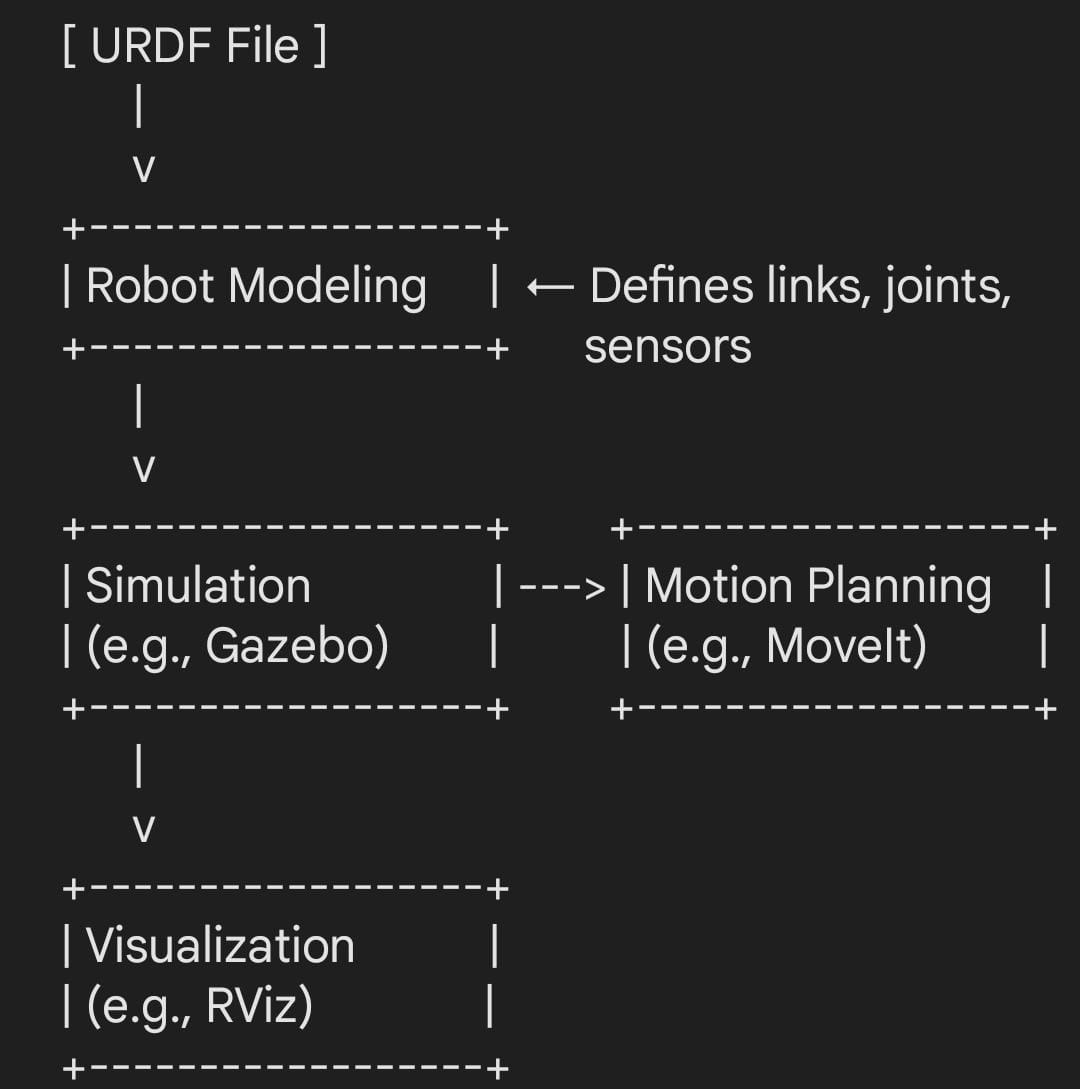
  • Visualizing robots in RViz
  • Running physics simulation in Gazebo
  • Generating motion plans in MoveIt
  • Debugging kinematics and transforms
Getting this right ensures every part of your robot behaves exactly as designed.

Installing the SolidWorks to URDF Exporter

Before exporting, install the SW2URDF plugin from the ROS Wiki.
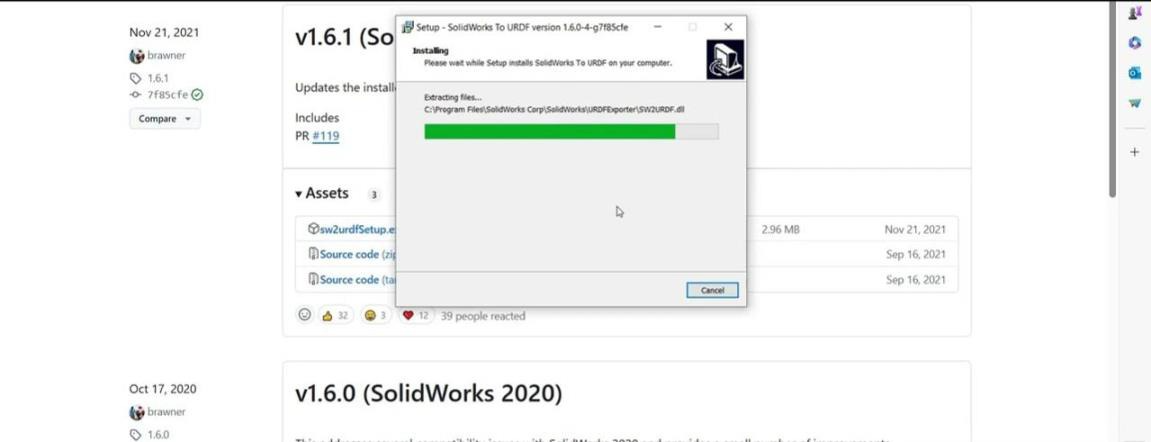
  • Ensure your SolidWorks version is supported (avoid 2018 SP4 bug).
  • SolidWorks 2020–2021 have stable versions tested for ROS workflows.
  • Requires .NET Framework 4.7.2+ and administrator privileges.
    Once installed, restart SolidWorks and look for Tools → Export to URDF.

Preparing Your Assembly the Right Way

A successful export depends on how well your assembly is structured:

  • Group parts that move together into subassemblies.
  • Each subassembly = one URDF link.
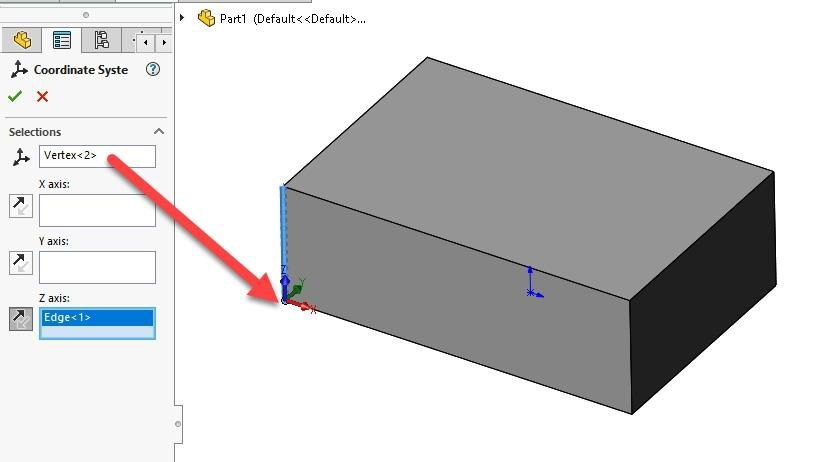
  • Define coordinate systems for every joint.
  • Align the Z-axis with the joint’s rotation or translation axis.
Tip: Always define coordinate systems at the top-level assembly; this avoids unexpected rotations or flipped meshes later.

Exporting Your URDF

Open your SolidWorks assembly → Tools → Export to URDF.

  • Define the base link (the fixed part of your robot).
  • Assign subassemblies to each link.
  • Choose joint types: revolute, prismatic, continuous, or fixed.
  • Set joint limits (radians/meters).
  • Verify that the exporter selected the correct coordinate system.
Click Preview and Export, your robot package is now generated with:

urdf/
robot.urdf
meshes/
*.stl
launch/
display.launch.py

Fixing Common Export Issues

Encountered an error? You’re not alone.
Here’s how to solve frequent problems:
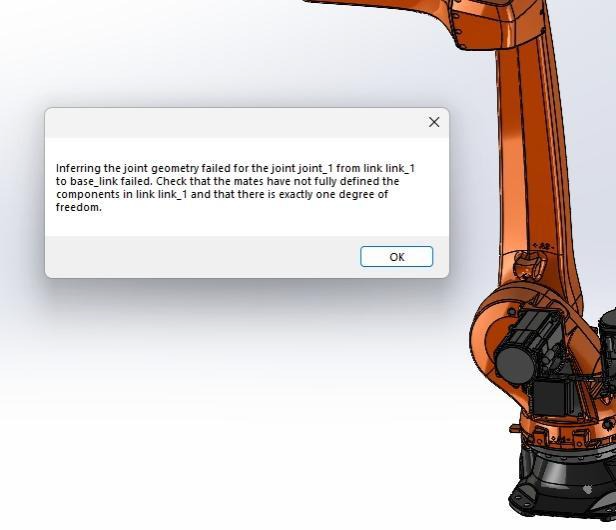
  • “Inferring joint geometry failed” → Add explicit coordinate systems and axes for every joint.
  • Robot rotated in RViz → Apply a 90° roll (rpy: 1.5707 0 0) or fix your global axes (ROS uses Z-up).
  • Missing joints → Verify parent-child hierarchy and clean assembly mates.
  • Unstable simulation → Check SolidWorks material densities and unit consistency.

Fine-Tuning the URDF

Your first export is just the beginning.
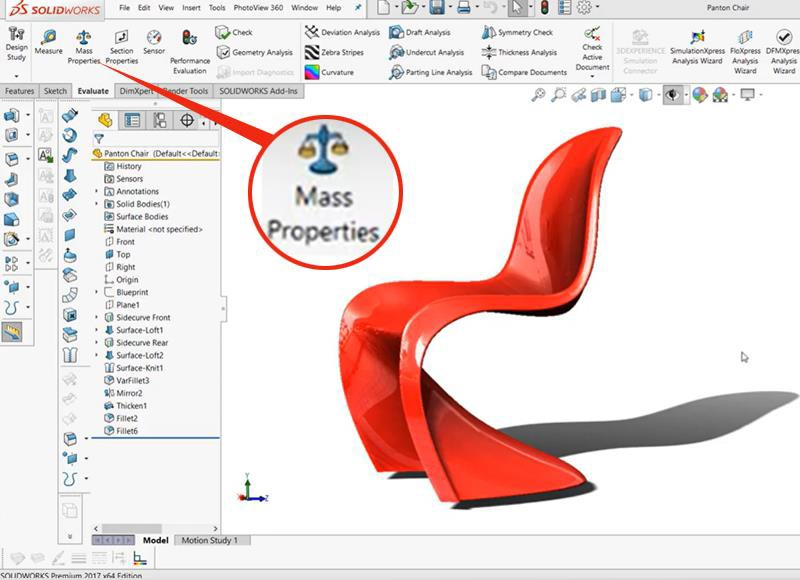
  • Recalculate mass & inertia via Evaluate → Mass Properties in SolidWorks.
  • Use MeshLab to simplify STL meshes for faster collision checks.
    → Visual mesh = detailed STL
    → Collision mesh = simplified convex hull

Validating in ROS

Before using your URDF:

  1. Run syntax checks:
    check_urdf robot.urdf
  2. Visualize in RViz using:
    ros2 launch robot_description display.launch.py
  3. Confirm all links, joints, and orientations render correctly.

Optional: Convert to XACRO for Maintainability

XACRO adds variables, macros, and parameter reuse to URDF.
Define properties like wheel radius or joint limits once, then reuse them.
It’s cleaner, easier to modify, and essential for large robots.
Resources

Converting CAD to URDF isn’t just a mechanical export; it’s your robot’s first digital birth in the ROS world. With the right assembly structure, coordinate setup, and patience, you can go from CAD to simulation in a single afternoon.

Akshet Patel
Author & Robotics Engineer | Contributor to Robocademy